Mobile app 2.0.8: Bug fixes, friendlier dates, and 2FA improvements

We’ve released version 2.0.8 of the Church Social app for iOS and Android, which focuses on fixing bugs and improving the reliability of the app. This includes fixes for known issues on Android when tapping addresses, phone numbers, and email addresses on the family screen.
We’ve also improved how message dates are displayed, matching the recent changes in the web app. Messages now show the time for messages sent today, “Yesterday” for yesterday’s messages, the weekday for messages from earlier this week, and dates like “Jul 13” for older messages.
Finally, we’ve improved the design of the two-factor authentication screen to make entering your verification code easier when needed.
We recommend updating to the latest version of the app to get these improvements. You can download or update the app from the App Store or Google Play.
Missing church names on transfer documents
We just fixed a bug in the transfer documents that caused the place of baptism or profession of faith to be missing in some cases. This was a regression introduced with the new federation directory and occurred when the church was selected from the directory instead of entered as plain text.
Repeating events on the fifth weekday of a month

You can now schedule events for the fifth Sunday—or any fifth weekday—of the month. If a month doesn’t have one, the event is simply skipped.
Improved file attachments for messages

We’ve made a few subtle but helpful improvements to the new message page.
File attachments now begin uploading as soon as you add them, rather than waiting until you press “Send.” You can monitor the progress of each upload and retry any that fail. You can also drag and drop attachments anywhere onto the page.
We also now preserve your draft for the current browser tab, so you won’t lose your message if you refresh the page or navigate away and return.
Members now only see home visits in their calendar
Not every visit recorded in Church Social is something the person being visited knows about ahead of time. A pastor may be planning an informal elderly check-in, a sensitive spiritual-care visit, or a hospital visit that hasn’t yet been arranged with the member. Showing these visits in a member’s calendar — or emailing them a reminder — could be confusing or reveal plans prematurely.
Members will now only see and receive reminders for home visits, which are typically arranged with the family ahead of time. Clicking a home visit in the calendar shows the date, time, and which office-bearers are coming.
All other visit types will now stay within the office-bearer visit tools. Office-bearers will continue to see all visits they are making and receive reminders as usual.
This change applies to the web calendar, mobile app, iCal subscriptions, and email reminders.
Improved file upload experience
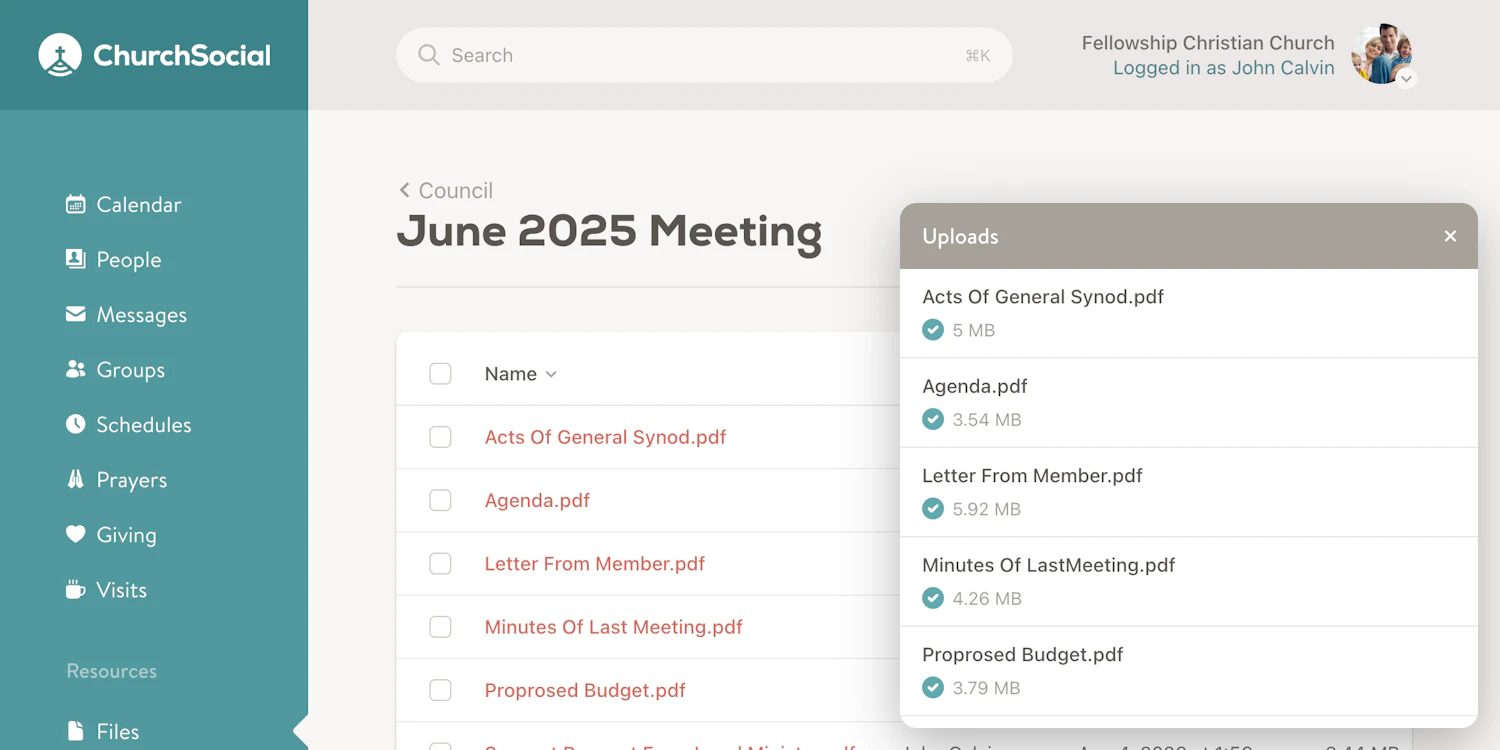
We've completely refreshed the file upload experience in the Files area. Files are now uploaded directly to secure cloud storage, reducing timeouts and supporting uploads of up to 1 GB. You can select multiple files or simply drag and drop them onto the page, then track each upload’s progress in the new upload panel.
You can also replace an existing file without deleting it first. Any shared links to the file will continue to work, and previous versions are preserved so you can view or download them later.
Filter messages by date

You can now filter messages by date range on the Messages page, making it easier to find messages sent during a specific period of time.
We’ve also improved how message dates are displayed. Recent messages now show clearer labels, such as the time for messages sent today, “Yesterday” for yesterday’s messages, the weekday for messages from earlier this week, and actual dates like “Jul 13” for older messages.
Added detailed visit print option

We’ve added a new detailed print style for visits, making it easier to print or export a complete view of all visit details for churches that keep offline copies. This includes an option to start each visit on a new page.
Be aware that visit notes are only included when the person printing the report has permission to view them.
You’ll find this new option in the three-dot dropdown menu on the visit search page, under Print. In the print dialog, select the Detailed option in the Style input.
URCNA stats report updated for 2026 Synod decisions

The Annual URCNA Statistics report has been updated to reflect the changes approved by the 2026 URCNA Synod.
The biggest change is around profession of faith reporting. Instead of one broad “Professions of faith without adult baptism” statistic, the report now includes a total count along with more specific categories:
- Total professions of faith
- Professions of faith with adult baptism
- Professions of faith by baptized members
- Reaffirmations of faith
- Readmissions of disciplined baptized members
Synod also approved removing the family transfer statistics from the annual statistics. Since this change was anticipated, those family transfer statistics were never added to this report.
Quicker access to your church and minister when entering records

Search results in church fields now prioritize congregations that are most relevant to your own church. When searching for a congregation, your current church will appear first if it matches the search, followed by other churches in the same federation, and then congregations from other federations.
Minister suggestions now also use past entries to determine the most helpful order. Ministers used most often in baptism and profession of faith records will appear first, with names sorted alphabetically when usage counts are tied.
Together, these changes should make entering data into Church Social a little faster.
Improvements to printing and editing prayers

You can now choose how prayer requests are sorted when printing them. In addition to the default date-posted order, prayer requests can be sorted and grouped by category, making printed prayer lists easier to scan and share.
When sorting by category, you can also choose whether each category should start on a new page.
We’ve also added a new quick actions dropdown on the prayers page, which includes options to edit, archive, or delete a prayer request, saving you a few steps when making changes to existing prayers.
Easier address entry

We’ve made adding addresses just a little bit easier: now, when you select a country and region (province/state), we automatically show your church’s country and region as the first options.
Since these are the options you’ll choose 99% of the time, it makes sense to list them first, so you don’t have to search or scroll to find them.
New file folder share option

We’ve made it easier to share file folders in Church Social.
File folders have always had shareable URLs: members with access could simply copy and paste the URL from the browser address bar and share it with members who also have access. However, this wasn’t obvious, especially since there was a dedicated sharing option for individual files, but not one for file folders.
To make this clearer, we’ve added a new Share option to file folders. Just open the folder menu, click Share, and copy the link.
We’ve also updated both the file and folder sharing dialogs to include a convenient copy button.
As always, shared links respect your church’s existing file access settings. Members will only be able to view a shared file or folder if they already have permission to access it in Church Social.
Working With Children Checks can now include PDFs

Australian churches can now upload a PDF file for a person’s Working With Children Check (WWCC), in addition to recording the number and expiry date.
This gives churches the option to keep a copy of the WWCC card or supporting documentation on file for easier record keeping.
Mobile app 2.0.6: Security and usability improvements
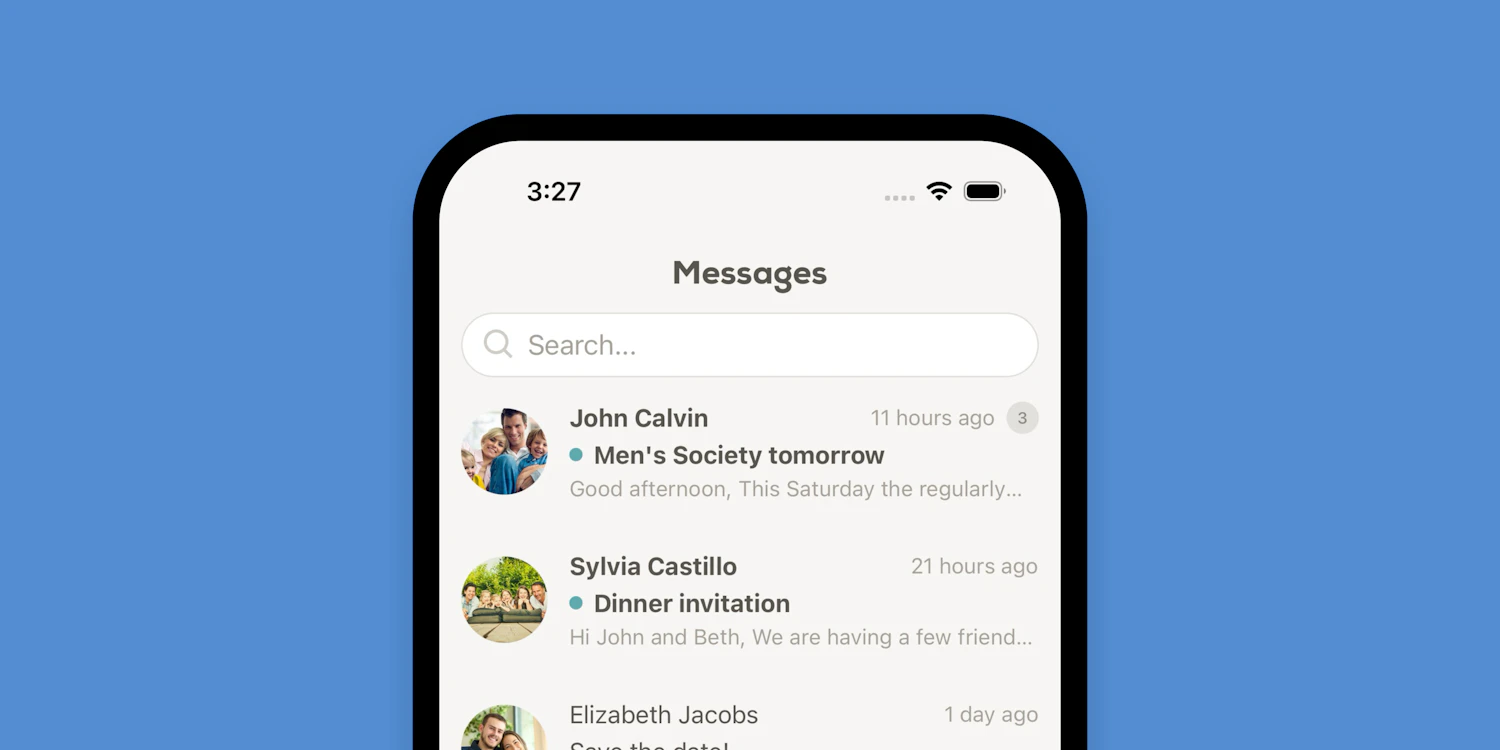
We’ve released version 2.0.6 of the Church Social app for iOS and Android, with several security, usability, and performance improvements.
The app should now open faster, thanks to some behind-the-scenes performance optimizations. We’ve also added an extra layer of protection when opening the full web app or viewing security settings, requiring members to verify access using their device’s built-in authentication, such as Face ID, Touch ID, or PIN entry.
This update also improves how trusted devices are shown for iOS users on the account security page. Instead of simply showing generic names like “iPhone” or “iPad,” Church Social now displays the actual device name, such as “Jonathan’s iPhone,” making it easier for members to identify their devices if they have more than one.
We’ve also made a few smaller improvements throughout the app, including adding reply counts to the messages screen, allowing the calendar to scroll all the way to the last available date, and fixing the selected date styling in the Android calendar.
We recommend updating to the latest version of the app to get these improvements. You can download or update the app from the App Store or Google Play.